
1 Choose how you want to use Card2Tap
You need a Card2Tap plan to build and publish your profile. A physical card is optional.
Digital only
Choose a plan and use your public profile, QR code, profile link, Apple Wallet and Google Wallet. Your dashboard opens as soon as your payment is confirmed.
Digital + an NFC product
Order an NFC card, sticker, name tag or desk stand. It’s linked to your account automatically when your order is paid, and it opens the same profile. No code to enter.
NFC products include the Standard Plan for 12 months (one period per order). After that, you renew when you choose.
Standard
Your profile, contact details, products & services, gallery, QR code, Wallet passes, contact exchange and basic analytics.
Professional
Everything in Standard, plus Link Finder, Appointment Requests, custom sections, more design options and advanced analytics.
Premium
Everything in Professional, plus Card2Tap AI.
Plans last 12 months and don’t renew automatically. We email you a reminder before yours ends. Compare plans
2 Build your profile
Everything happens in My Card2Tap. Open it from Dashboard in the menu once you’re signed in.
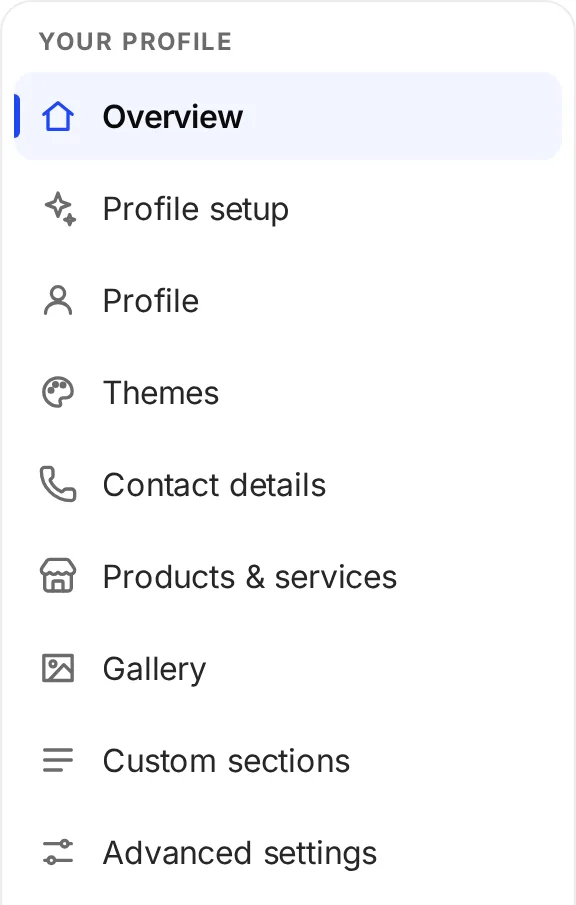
You can add
- A profile photo or logo, and a banner (Profile)
- Your name, job title, company and a short description (Profile)
- Phone, email, website, address and WhatsApp (Contact details)
- LinkedIn, Instagram, Facebook, TikTok, YouTube and X (Contact details)
- Google review, Google Maps and Business Profile links (Contact details)
- Products & services, with prices if you like
- A Gallery of photos and YouTube videos
- A layout and accent colour (Themes)
- Custom sections and Appointment requests (Professional)
For each contact detail you choose what a tap does: call, text, email, open a website or show directions.
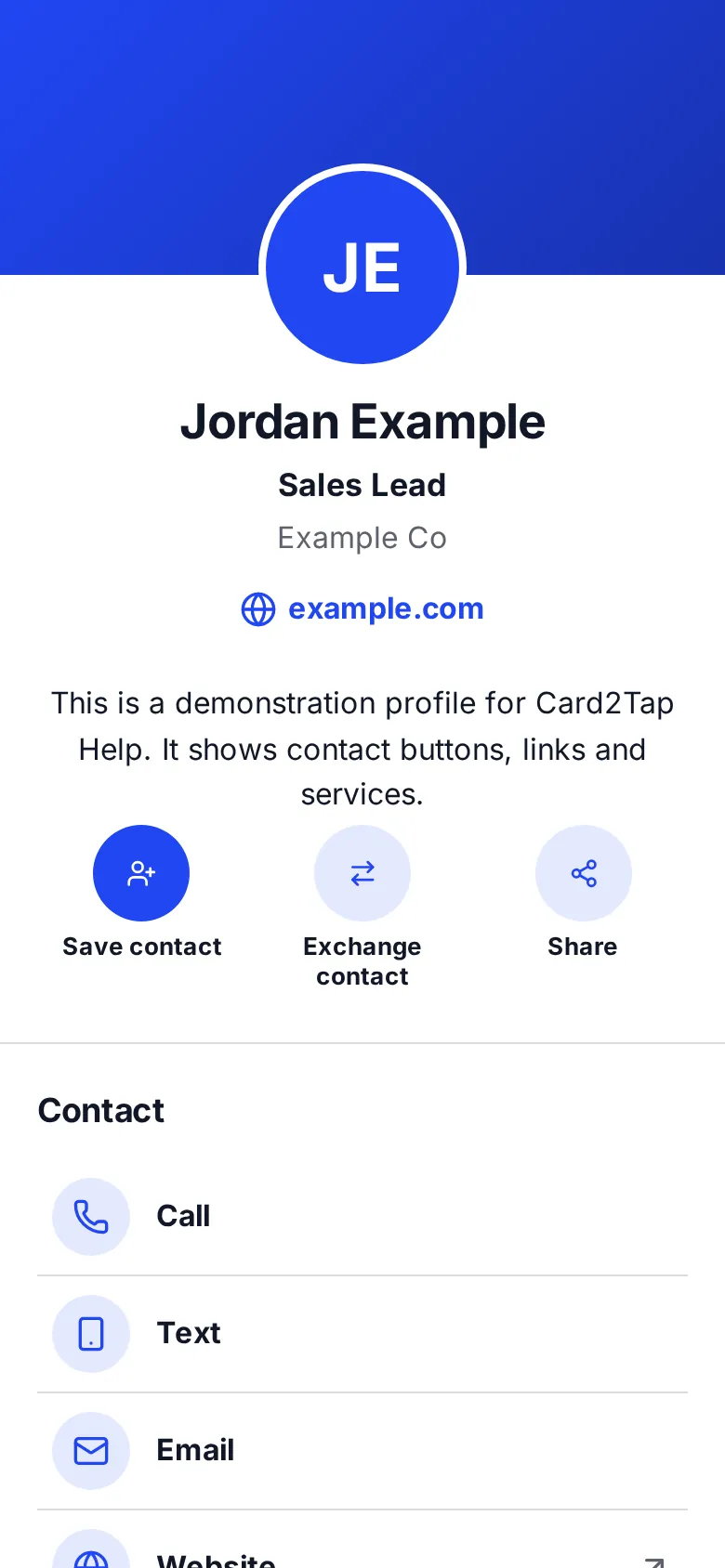
Your profile can include
- Contact buttons, Save contact and Exchange contact
- Social and Google review links
- Products & services
- A gallery
- Appointment requests (Professional)
A demonstration profile. Yours shows only what you add.
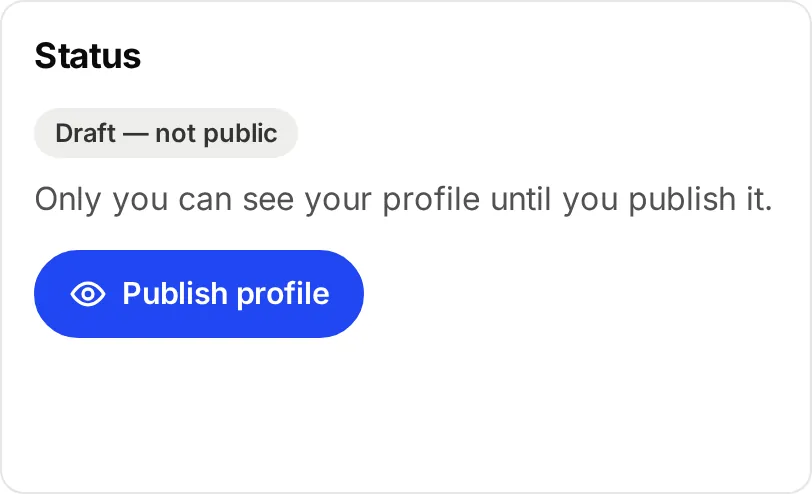
Draft
Only you can see it, while you’re signed in. Anyone else who opens your link sees “Profile not found”.
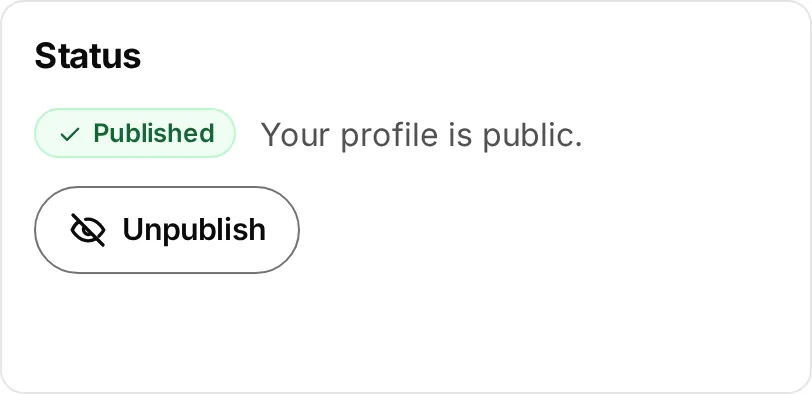
Published
Anyone with your link, QR code, card or Wallet pass can open it.
Your profile isn’t ready to share until it’s published. How do I publish my profile?
3 Publish when you’re ready
Check your profile with Preview or View draft, then go to Overview → Status → Publish profile.
- Name and company are right
- Phone and email open the right app
- Every link opens the right page
- Your photo or logo looks right
- Products & services are up to date
You need a name or company before you can publish. Once your profile is published, saved changes show straight away.
4 Share your Card2Tap
NFC card
Hold your card near the top of an iPhone, or against the back of an Android phone with NFC on.
QR code
In Share & QR, download your QR code as SVG or PNG, or show it from your profile’s Share button.
Profile link
Copy it from Share & QR and send it by email, text or social media, or add it to your website.
card2tap.com/p/your-name
Apple Wallet
Add your pass from Overview or Share & QR, then show its QR code from your iPhone.

Google Wallet
Add your pass from Overview or Share & QR, then show its QR code from your Android phone.

Wallet passes come with every plan. Your profile must be published first. The buttons above are what you’ll see in My Card2Tap.
What happens when someone taps your card
-
A phone touches your card
iPhone or Android with NFC -
The phone reads your tap link
card2tap.com/t/…, set up by Card2Tap -
The browser opens it
No app needed -
Your profile appears
Your current published profile
Your card stores a permanent tap link, not a copy of your details. When a phone reads it, Card2Tap opens the profile the card points to in the phone’s browser. That’s why the card always shows your latest published profile.
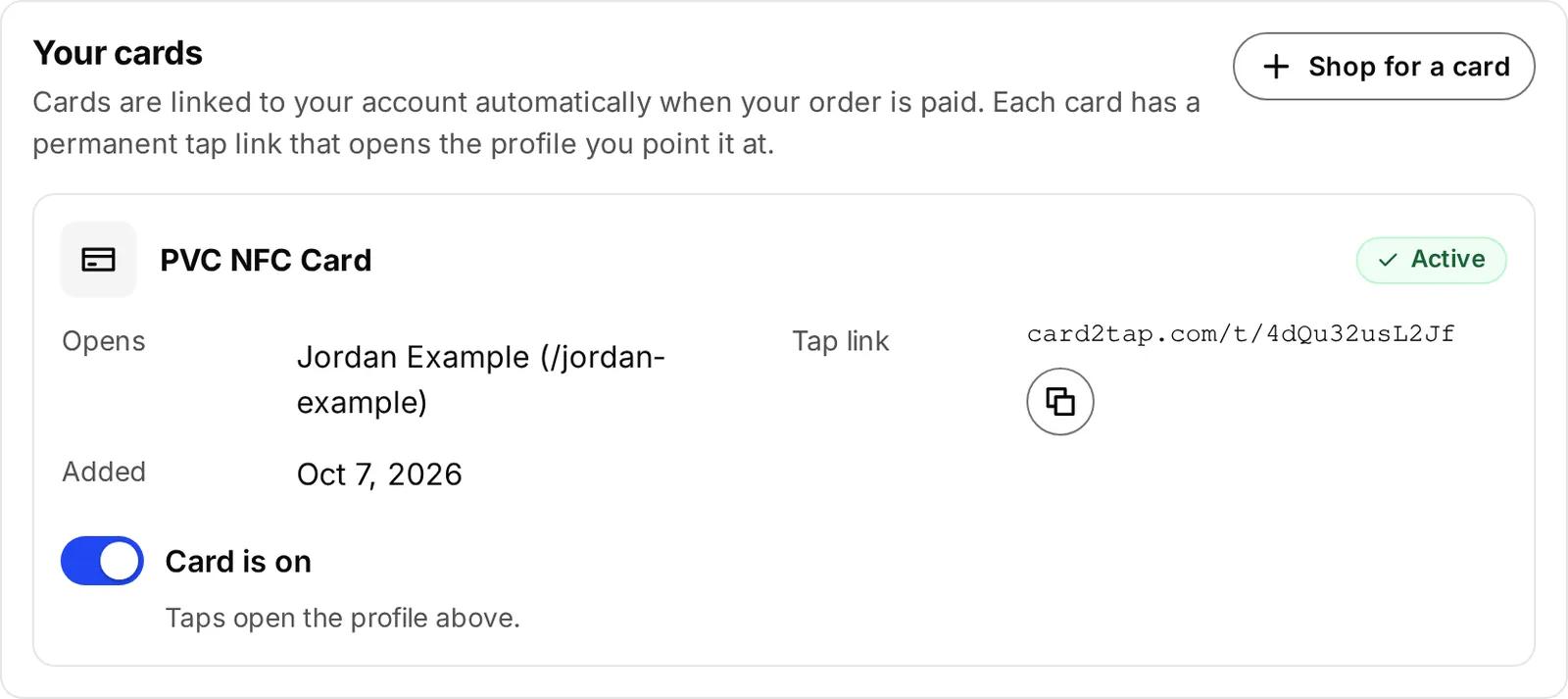
Cards & orders shows each card and the profile it opens.
Card2Tap links each card to your account when your order is paid. You can see your cards, and where each one points, in Cards & orders. If the profile isn’t published yet, a tap shows “This profile is not published yet”.
Update your profile without reprogramming your card
Edit your profile any time in My Card2Tap. When you save, your NFC card, QR code and profile link open the updated profile.
- Changed your web address? Your cards keep working, and your recent previous addresses redirect to the new one. Download your QR code again for anything you print next.
- Apple Wallet passes keep the details from when you added them; add yours again to refresh them. Google Wallet passes update by themselves.
Your printed card stays the same
Editing your profile changes your digital profile only. The artwork printed on your card doesn’t change.
What visitors can do
No app or account needed: your profile opens in the phone’s browser. Visitors see only what you add and switch on.
- Call
- Text
- Open your website
- Social links
- Get directions
- Save contact
- Exchange contact
- Products & services
- Gallery
- Leave a Google review
- Request an appointment
- Share your profile
Save contact
Downloads your contact card so the visitor can add you to their phone’s contacts.
Exchange contact
The visitor sends you their own name and email or phone, with their permission. You get an email, and they appear in Contacts in My Card2Tap.
Extra tools on Professional and Premium
Appointment Requests
Professional · Premium
Visitors choose a service, a day and a free time, then send a request. You approve it, decline it or suggest another time. If you set a service to confirm automatically, it’s booked straight away.
Link Finder
Professional · Premium
Add your Google review, Google Maps, Business Profile and social links: paste a link, check the preview, confirm it’s yours, then add it. Nothing is added without your OK.
Card2Tap AI
Premium
Get suggestions for your short description, job title and products & services in Profile setup, and drafts for marketing messages. Review and edit every suggestion before you save or publish.
Using Card2Tap with a team?
Card2Tap Teams helps organizations manage:
- Team member profiles
- Shared branding, with fields you can lock
- Seats and roles (Owner, Admin, Manager, Member)
- Team cards
- Central billing
- The plan features your team has
Team Owners and Admins order and manage team cards. Members edit their own team profile within the team’s settings.

Common first-time questions
Do visitors need the Card2Tap app?
No. Your profile opens in their phone’s browser.
Do I need to reprogram my card after editing my profile?
No. Your card holds a permanent tap link, so it always opens your latest published profile.
Can I change my profile later?
Yes, any time in My Card2Tap. Once it’s published, saved changes show straight away.
Can I use Card2Tap without a physical card?
Yes. Share by QR code, your profile link, Apple Wallet or Google Wallet.
Does my printed card change when I edit my profile?
No. Your digital profile changes; the printed artwork doesn’t.
What happens when my plan ends?
Your published profile keeps working, including card taps, your QR code and Save contact. Plan features such as contact exchange and Wallet buttons pause until you renew.
Something not working?
Was this guide helpful?
Still need help?
We’re here to help with your profile, NFC products, Wallet, Teams and account setup.
+1-905-604-7793info@card2tap.comMonday–Friday, 9 A.M.–5 P.M.